

Your left ear.
Your right volume.
Set left and right ear volumes independently on supported headphones, or use a single balance slider for a quick adjustment.
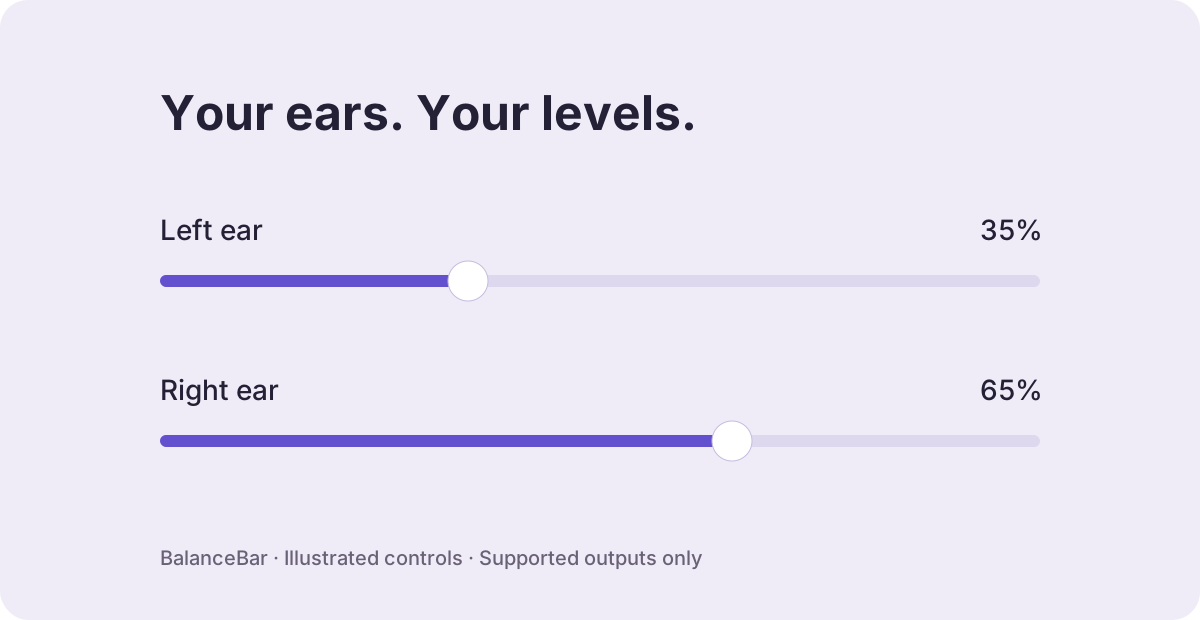
Set a different volume in each ear
- Connect your headphones and choose them as your Mac’s sound output.
- Open BalanceBar and select the Balance tab. Stop audio sharing if it is running.
- Turn on Separate ears.
- Move Left or Right. Each slider sets that channel’s volume; moving one leaves the other unchanged.
Independent channel controls have been verified with AirPods Pro 3. An output must expose writable left and right channel controls to macOS. Our test MacBook Pro speakers do not expose these controls. Unsupported outputs show Unavailable.
Balance versus independent ear volume
| Control | What it does | When to use it |
|---|---|---|
| Balance | Shifts the balance toward the left or right. | A quick adjustment toward the ear you want louder. |
| Separate ears | Sets each supported channel’s volume independently. | You want specific left and right levels. |
| Mono | Combines the left and right content for both ears. | You are listening with one earbud and want both channels’ content. |
The balance readout shows slider position: L 50% · R 50% means centered. It is not a measurement of individual ear volume. In Separate ears mode, the percentages are the channel volume levels reported by the device. Neither readout measures sound pressure or perceived loudness.
Can I change AirPods left and right volume separately?
Yes, on the tested AirPods Pro 3 setup with BalanceBar’s Separate ears mode. Other models and connection modes may expose different controls. If the mode is unavailable, check that the AirPods are your current output and are not in a Bluetooth call mode.
Use macOS balance without an app
Open System Settings → Sound, select your output and move the Balance slider if the output provides one. Apple documents this in Sound output settings. BalanceBar keeps that kind of adjustment in your menu bar and adds an independent-ear mode where supported.
Listening with just one earbud
Turn on Mono audio in BalanceBar to hear content from both channels through either ear. Mono is a Mac-wide setting and does not mean equal volume. You can still use supported ear-volume controls to choose each side’s level.
Why are the controls disabled during sharing?
Sharing uses a combined output. Stop sharing to return to one output before adjusting its balance or separate ear volumes. While sharing, use the individual device sliders instead. See two-device audio on Mac.
What happens when I switch modes or quit?
Switching between Balance and Separate ears does not itself change your sound. The app reads your current settings. Volume and balance stay where you leave them when you quit. Other apps or macOS volume controls may change those levels later.
Try BalanceBar for Mac.
Free. No account or subscription. macOS 13 or later. Device support varies.
Download BalanceBarInstallation instructionsThe current direct download is not notarized by Apple.