

Two audio devices.
One Mac.
BalanceBar shares the same Mac audio across connected stereo outputs, with a separate volume slider for each output that supports it.
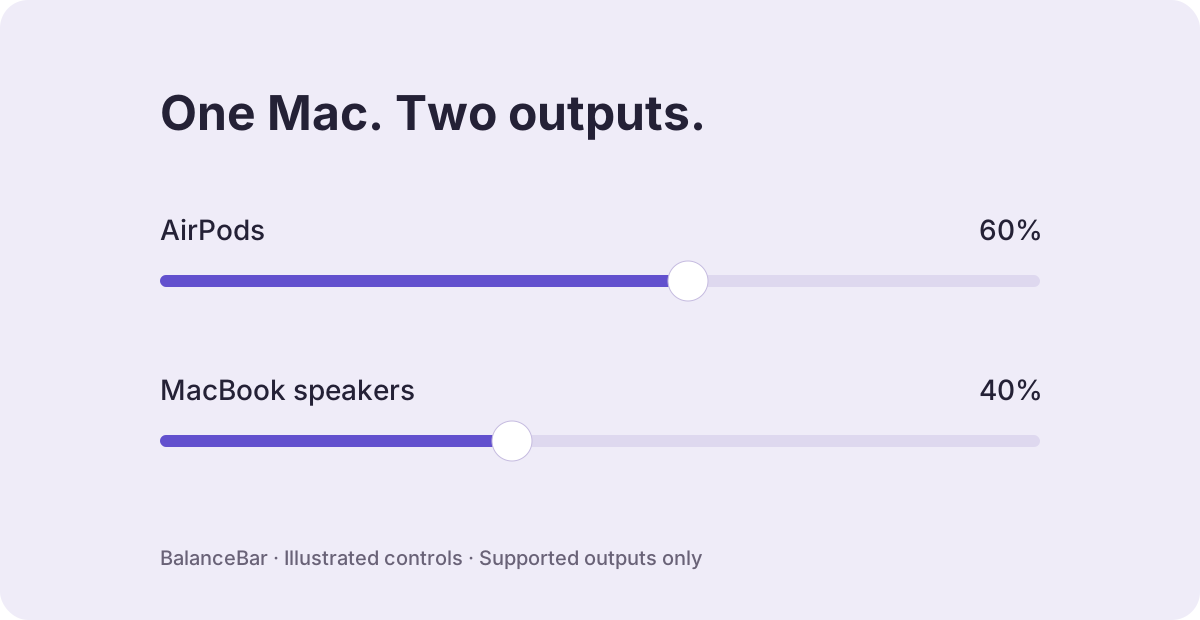
Playback through AirPods Pro 3 and MacBook Pro speakers together has been confirmed by a listener. Two pairs of AirPods have not yet been tested together. Volume controls and Bluetooth timing depend on the devices.
Share audio using BalanceBar
- Connect the outputs to your Mac. For Bluetooth headphones, connect each pair in System Settings → Bluetooth.
- Open BalanceBar from the menu bar and select Share audio.
- Select at least two connected stereo outputs, then choose Start sharing.
- Play audio in an app that follows your Mac’s system output. Adjust each available device slider to its listener’s preference.
- Choose Stop sharing to return to your previous output, if it is still connected.
BalanceBar uses a native macOS multi-output device. It does not record the sound, install an audio driver or require microphone access. Balance and separate-ear controls are disabled while sharing.
Can I use two pairs of AirPods on a Mac?
BalanceBar can select connected stereo devices, including compatible AirPods. Both pairs must be connected to the Mac and available as stereo outputs. The two-AirPods combination still needs a listening test, so we do not promise compatibility with every pair or identical Bluetooth timing. The confirmed setup is one AirPods Pro 3 pair plus MacBook Pro speakers.
Separate volumes and the Mac volume keys
Device sliders work when macOS exposes a writable volume control. If a slider is unavailable, use that device’s hardware controls. BalanceBar cannot add software volume to every HDMI or digital output.
For keyboard control while sharing, enable Volume keys in BalanceBar and grant Input Monitoring when macOS asks. Volume up and down adjust the selected outputs together while keeping their relative levels. This was tested with AirPods Pro 3 and MacBook speakers. The normal macOS multi-output master slider remains unavailable.
The built-in alternative: Audio MIDI Setup
You can also create a multi-output device without installing an app. In Audio MIDI Setup, use the + button to create a Multi-Output Device, select the outputs to include and choose a primary device. Select that output for playback. Apple describes the process in its multi-output guide.
BalanceBar puts selection, starting, stopping and supported device volumes together in a menu-bar panel. Compare the different Mac audio tools.
If only one output plays
- Confirm both outputs are still connected and selected in Share audio.
- Check each device’s level and hardware mute control.
- If your player has its own output selector, set it to follow the system output.
- Stop sharing and start again after reconnecting a missing device.
- When using Bluetooth headphones during a call, try the Mac’s microphone so the headphones can remain in stereo mode.
Does it play different audio to each device?
No. Sharing sends the same system audio to the selected outputs. It is not a per-app mixer or a way to send separate tracks to each listener. For different left and right ear levels on one headset, use the separate-ear guide.
Try BalanceBar for Mac.
Free. No account or subscription. macOS 13 or later. Device support varies.
Download BalanceBarInstallation instructionsThe current direct download is not notarized by Apple.